
What are the best cloud storage solutions for small offices in Australia? For most small businesses, the answer isn’t about finding the single “best” cloud storage platform in isolation – it’s about matching cloud storage services to how your team already works, especially if you’re already using Microsoft 365 or Google Workspace for email and collaboration.
This guide compares the best cloud storage solutions for small offices across Australia in 2026 – what each platform is actually built for, how much storage space they really offer, and how to work out how much data your team needs.
Key Takeaways Best Cloud Storage Solutions for Small Offices
- Cloud storage and cloud backup are not the same thing — storage is for day-to-day file access and collaboration; backup is for recovering from loss, corruption, or ransomware. Most small offices need both.
- The right cloud storage solution usually follows your email provider. If you’re on Microsoft 365, OneDrive/SharePoint is the natural fit; if you’re on Google Workspace, Google Drive is.
- Storage capacity needs are almost always smaller than businesses expect — most small offices under 20 staff comfortably fit within standard business-tier storage allowances.
- Local storage still has a place for businesses with large files, specific compliance needs, or unreliable internet connection — often alongside cloud storage rather than instead of it.
- Permissions and sharing settings matter more than storage space for most small business security incidents involving cloud storage.
- Cyberattacks increasingly target small businesses — 43% of all cyberattacks are estimated to target small businesses, according to widely cited industry research, which makes account security as important as storage capacity when choosing a provider.
Quick Answer of Best Cloud Storage Solutions for Small Offices
For most small offices in Australia, Microsoft 365 (OneDrive + SharePoint) or Google Workspace (Google Drive) will comfortably cover cloud storage needs — the right cloud storage solution usually comes down to which one your team’s email and collaboration tools are already built on, rather than storage capacity alone.
Businesses with larger files, sensitive data, or hybrid on-premises needs may want to layer in local storage or a dedicated platform like Box alongside their core cloud storage.
XCD IT helps Brisbane, Gold Coast, and Sunshine Coast SMBs choose, migrate to, and secure whichever of these platforms fits their setup, rather than pushing a one-size-fits-all recommendation.
Comparing the Options at a Glance
| Platform | Best For | Included With | Ideal Team Size |
|---|---|---|---|
| Microsoft 365 (OneDrive/SharePoint) | Microsoft-based small offices | Microsoft 365 subscription | Any size, especially structured teams |
| Google Workspace (Google Drive) | Google-based, collaboration-heavy teams | Google Workspace subscription | Any size, especially live-editing teams |
| Dropbox Business | Cross-platform external file sharing | Standalone subscription | Small to mid-size |
| Box | Regulated industries needing governance | Standalone subscription | Small to enterprise |
| Hybrid/local storage + cloud | Large files, compliance, poor connectivity | Managed via IT provider | Small to mid-size |
| pCloud / Sync.com | Cost-conscious solo/small teams | Standalone subscription | 1–10 people |
| Egnyte | CRM/productivity-integrated storage | Standalone subscription | Small to mid-size |
Top Cloud Storage Providers for Small Offices
1. Microsoft 365 (OneDrive + SharePoint) — Best for Microsoft-Based Small Offices
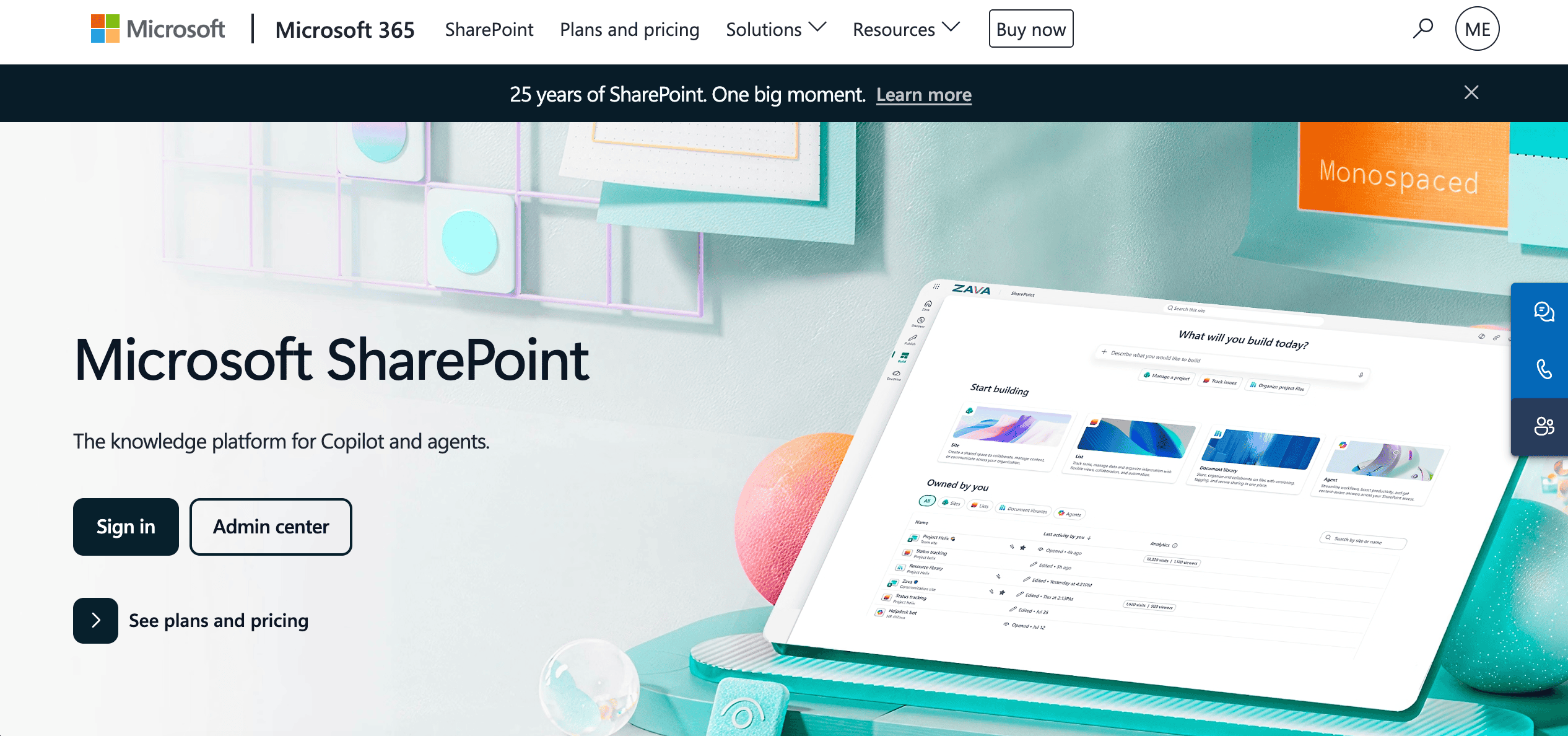
Microsoft 365 bundles OneDrive (individual file storage) and SharePoint (shared team and department storage) into the same subscription most small businesses already use for Outlook, Word, and Excel.
For a small office already running Microsoft 365 for email, this is usually the path of least resistance — storage, permissions, and collaboration all sit inside one ecosystem, with no separate login or sync client to manage.
SharePoint in particular is well suited to structured document libraries with permission levels by department or project, which most generic cloud storage tools don’t handle as cleanly. Microsoft OneDrive is generally considered the strongest option for businesses already using Microsoft 365, largely because of how seamlessly it integrates with Microsoft Office and the wider collaboration suite.
Best for: Small offices already using Microsoft 365 for email and productivity tools, wanting storage that integrates directly with Outlook, Teams, and Office apps.
2. Google Workspace (Google Drive) — Best for Teams Already in the Google Ecosystem
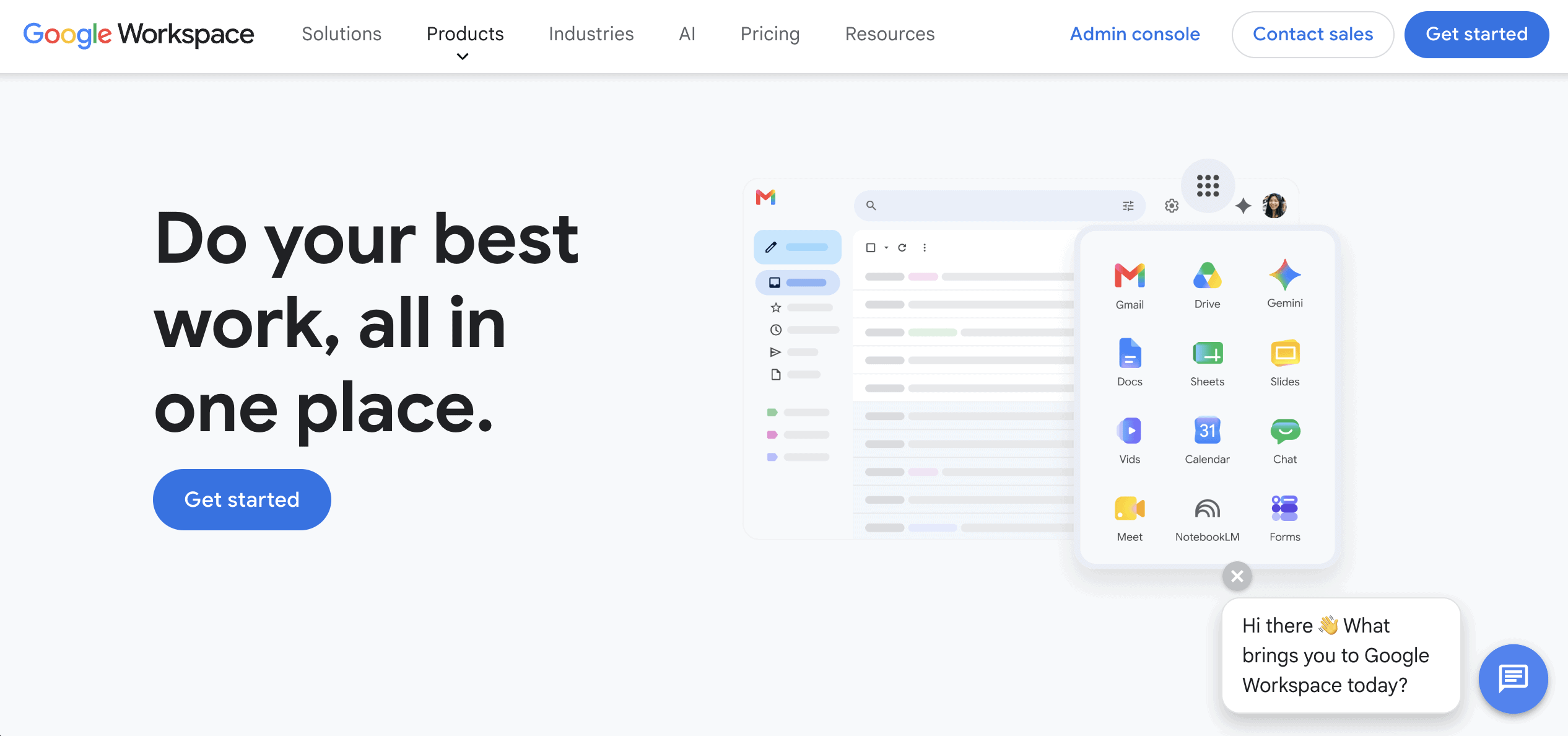
Google Drive plays the same role for Google Workspace that OneDrive/SharePoint plays for Microsoft 365 — storage built into the same subscription as Gmail, Docs, and Sheets.
Google Drive’s real-time collaborative editing was an early differentiator and remains a strong fit for remote teams that do a lot of simultaneous document editing rather than structured file/folder management.
Shared Drives (Google’s team-level storage, distinct from personal “My Drive”) function similarly to SharePoint document libraries, with ownership sitting at the team level rather than an individual employee. Google Drive also connects with thousands of third-party apps through integrations like Zapier, which can matter for businesses running a wider stack of business tools beyond core productivity software.
Best for: Small offices already using Google Workspace for email, particularly remote teams that collaborate heavily on live documents.
3. Dropbox Business — Best for Simple Cross-Platform File Sharing
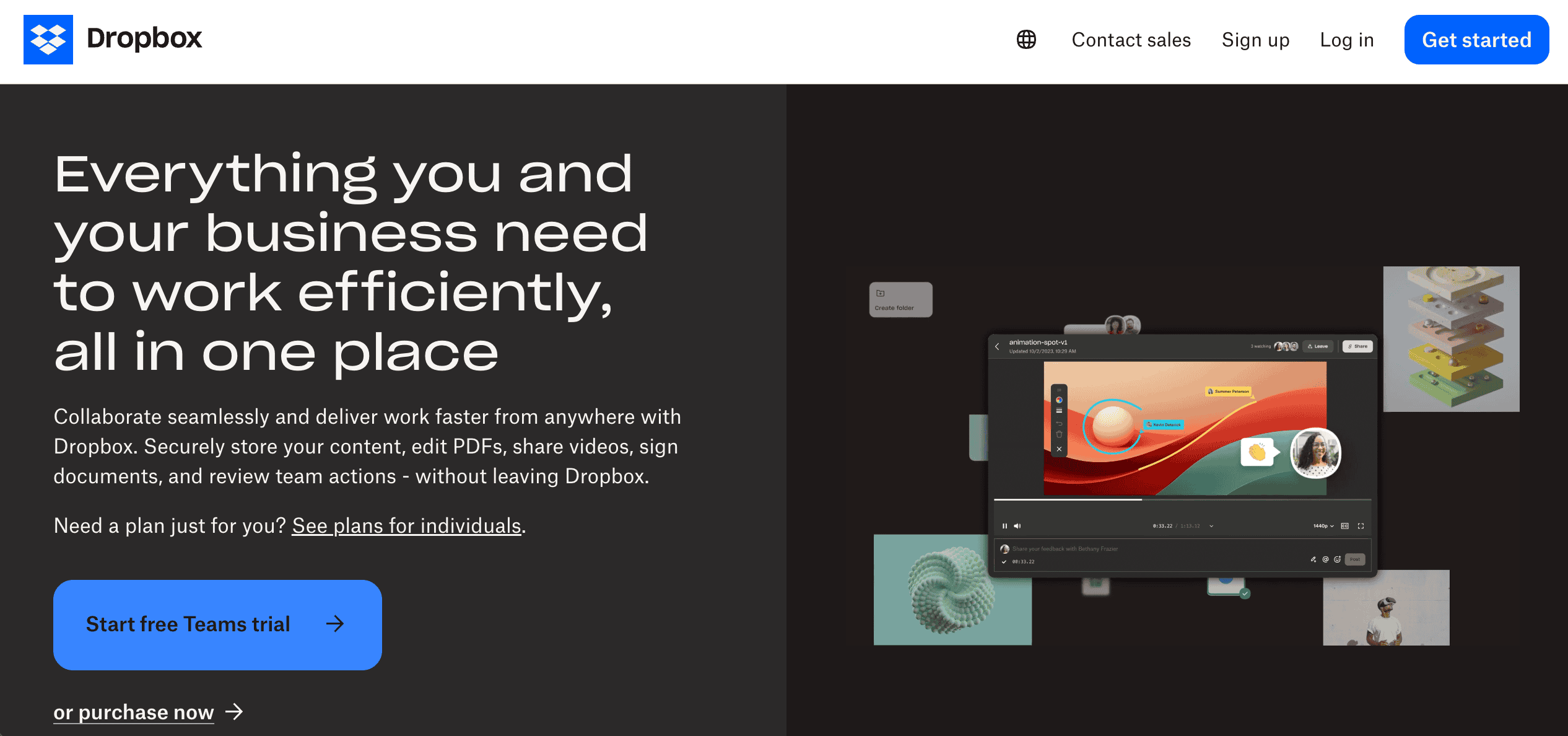
Dropbox remains one of the simplest cloud storage tools to set up and use, and Dropbox makes it easy to access files across devices and through its desktop app, particularly for businesses that work with external clients or contractors who aren’t on the same email platform.
Its file-syncing reliability and straightforward secure file sharing links make it a common choice for creative, marketing, and professional services businesses that frequently share large dropbox files externally, and shared files can also be protected with permission controls when sent outside the business.
On the compliance side, Dropbox Business complies with SOC 2, HIPAA, and GDPR standards, which is worth knowing if your business handles any regulated or sensitive data even occasionally.
Dropbox’s Advanced plan also supports a much larger storage ceiling than most small offices will ever need — teams can purchase up to 1,000TB of total pooled storage across the whole organisation (not per individual user), with a 3-user minimum.
Dropbox Business doesn’t include email or productivity apps the way Microsoft 365 and Google Workspace do, so it’s typically added on top of an existing email platform rather than replacing one. It does, however, integrate directly with Microsoft Office, Google Docs, and Slack.
Best for: Businesses that frequently share files with external parties and want a simple, platform-agnostic cloud storage service that isn’t tied to a specific email provider.
4. Box — Best for Content-Heavy or Highly Regulated Industries
Box positions itself around secure content management rather than general-purpose file storage, and is better suited to businesses that handle sensitive data and need robust security controls around documents, with stronger built-in governance, retention, and security and compliance features than most consumer-facing platforms.
Box is favored for its enterprise-grade security and compliance features, particularly in highly regulated industries such as legal, healthcare, and financial services, where robust security, document retention policies, and audit trails matter as much as storage itself.
Box also offers a genuinely wide integration ecosystem — over 1,500 integrations with other business applications — which can matter for businesses running a large existing tools stack alongside their document storage.
For a typical small office without specific regulatory requirements, Box’s additional governance features are often more capability than needed — but for a business that does need them, they’re genuinely built in rather than bolted on.
Best for: Regulated industries needing strong data protection, retention policies, and audit trails alongside storage.
5. Hybrid Cloud + Local Storage — Best for Businesses with Large Files or Compliance Needs
Not every small business is best served by pure cloud storage. Businesses working with very large files (video production, CAD/engineering, medical imaging) or with specific data residency requirements often benefit from a hybrid setup — a local server or NAS that helps them store data locally for day-to-day performance, backed by cloud-based copies for redundancy and remote access.
This is typically set up and managed through an IT provider rather than configured as a self-service product, since it involves balancing local infrastructure with cloud connectivity and internet connection reliability.
Best for: Businesses with large file workflows, unreliable internet in some locations, or industry-specific requirements around where data physically sits.
6. pCloud / Sync.com — Best for Cost-Conscious Small Teams
For very small teams or solo operators without a formal Microsoft 365 or Google Workspace subscription, lower-cost dedicated storage platforms like pCloud or Sync.com can cover basic file storage and personal cloud storage needs at a lower price point, mainly for storing files online rather than replacing a broader productivity suite.
These platforms typically lack the deeper collaboration and productivity app integration of Microsoft 365 or Google Workspace, so they suit storage as a standalone need rather than a full collaboration platform.
Best for: Very small teams or solo businesses that need just cloud storage without a full productivity suite subscription.
More Cloud Storage Tools and Platforms Worth Knowing
Beyond the six main options above, a few other cloud storage tools come up often enough for small offices with specific needs that they’re worth a mention:
Egnyte integrates directly with Microsoft 365 and Salesforce, and offers two-factor authentication for enhanced account security. Its Enterprise plan offers 50GB of storage per employee — useful for businesses that want per-person storage guarantees rather than a shared pool, and a model that can make it easier to scale storage as a team grows. Best for businesses wanting cloud storage tightly integrated into an existing CRM and productivity stack.
Internxt uses AES-256 CTR zero-knowledge encryption for data security, positioning itself around privacy-first storage rather than collaboration features. Best for privacy-conscious personal users or small teams handling sensitive data.
Proton Drive offers end-to-end encryption for all stored data, including a free tier with 1GB of storage. Best for businesses or individuals prioritising encryption above collaboration features.
Tresorit provides end-to-end encryption for file sharing and collaboration, positioning it between a general-purpose cloud storage platform and a dedicated secure-sharing tool. Best for professional services firms handling sensitive data with external parties.
Backblaze, while primarily a backup platform rather than a cloud storage service, offers unlimited storage for backup per computer for a flat annual fee — currently in the vicinity of $99–$123 per computer per year depending on plan. Worth knowing if your business needs raw backup capacity rather than a collaborative storage platform (see our separate guide to cloud backup solutions for more on this distinction).
Security Features: How Cloud Storage Providers Protect Your Data

Data protection and encryption vary meaningfully across online storage and cloud storage services, and it’s worth understanding what “secure” actually means for each platform before choosing one.
Most mainstream providers offer secure encryption both in transit and at rest as standard. Some platforms go further with end-to-end encryption — meaning even the provider itself can’t access your files — which matters more for businesses handling particularly sensitive data than for general day-to-day document storage.
For small teams using cloud data storage, strong admin controls should also include a centralized dashboard for managing user permissions, monitoring sharing activity, and tightening user access as part of secure cloud storage and broader data governance that helps keep customer data data safe through secure storage practices.
Two-factor authentication should be considered non-negotiable regardless of which cloud storage provider you choose.
A cloud storage account without it is one leaked password away from a full data protection failure, no matter how robust the platform’s underlying data centers and infrastructure are.
File recovery features should also retain older document versions and deleted items so businesses can restore content after mistakes, ransomware, or accidental deletion of deleted files.
Integration Capabilities: Connecting Cloud Storage With Your Existing Tools

Effective business cloud storage should fit into your existing software ecosystem, not just pile on add-ons, because that matters more to day-to-day usability than raw capacity or security features.
Dropbox integrates with Microsoft Office, Google Docs, and Slack, letting teams edit files inside connected tools instead of downloading and re-uploading them. Egnyte integrates with Microsoft 365 and Salesforce. Google Drive connects with thousands of apps via Zapier. Box offers over 1,500 integrations with other applications, which is one reason comparing cloud storage companies closely matters.
For most small offices, the practical question is less “which platform has the most integrations” and more “does this cloud storage platform talk cleanly to the two or three business tools we actually rely on every day.”
How Much Storage Space Do You Actually Get?

This is one of the most common questions small business owners ask before choosing a plan, and the honest answer is: usually more than you’d expect, at every reasonable price point. In fact, 48% of small businesses use cloud-based technology for storage.
A typical small office primarily working with documents, spreadsheets, and presentations will find that standard business-tier Microsoft 365 or Google Workspace plans cover most business files and still leave plenty of headroom for cloud based storage and day-to-day data storage.
Free storage tiers (like Proton Drive’s 1GB) are generally aimed at individual users rather than small business teams with limited online storage space.
Storage needs grow meaningfully when a business regularly works with large files — high-resolution images, video, CAD drawings, or large datasets. In those cases, when comparing storage limits and scalability, it’s worth checking whether capacity is priced per user or pooled across the team before assuming a standard plan will cover it.
Cloud Storage vs Cloud Backup: An Important Distinction

It’s worth being clear about this, since the two are often confused: cloud storage (OneDrive, Google Drive, Dropbox) stores data on remote servers so teams can access files online for day-to-day work and collaboration, not for restoring backup data after a serious loss event.
Most storage platforms offer some version history and a recycle bin, but retention windows are typically short, and a compromised account can affect synced files across every connected device.
Cloud storage should not replace a genuine backup solution, and following the 3-2-1 backup rule is still recommended for any business serious about protecting its data.
If your business needs protection against ransomware, accidental deletion, or long-term data loss — not just everyday file access — that’s a separate requirement covered in our guide to cloud backup and disaster recovery solutions. Most small offices need both: storage for daily work, and backup data for recovery when something goes wrong.
Choosing Cloud Storage Based on Your Microsoft 365 Setup
For businesses already invested in Microsoft 365 — which covers a large share of Australian SMBs — the practical question usually isn’t “which cloud storage platform” but “how well is our existing cloud platform configuration across OneDrive and SharePoint actually set up.”
A poorly structured SharePoint environment (flat folder structures, unclear ownership, inconsistent permissions) causes more day-to-day friction for small offices than the choice of platform itself.
This is where getting Microsoft 365 set up properly from the start — permissions, document libraries, and sync settings, including how cloud files appear through Microsoft’s sync experience on user devices — tends to matter more than which cloud storage brand is on the invoice. Our guide to Microsoft 365 Business Premium covers what’s included at each tier if you’re evaluating your current plan.
Mobile Access and Remote Teams

Most small business teams now expect mobile access to their files as standard, and they also expect to access files from phones, tablets, and browsers without friction.
All major cloud storage services — Microsoft 365, Google Workspace, Dropbox, and Box — offer mobile apps for both Windows users and Apple users, along with a desktop app that helps Windows computers keep files available offline and in sync when internet connection is unreliable.
For remote teams working across multiple devices, the practical test isn’t just “does it have a mobile app” but whether files, permissions, and version history stay consistent across every device an employee might use during their workday.
Pricing Models: What to Watch For
Cloud storage services are typically sold on a few different pricing models, so comparing cloud storage options starts with understanding which model you’re being quoted before evaluating platforms directly.
Some providers use straightforward pay-as-you-go pricing based on storage consumed. Others use enterprise plans with custom pricing that only becomes clear once you request a quote — common with Box and larger Egnyte deployments — and that pricing structure can affect how easily a business scales storage over time.
Hidden costs are worth watching for regardless of platform: overage charges beyond a storage allowance, per-user minimums (as with Dropbox Business’s 3-user minimum), or add-on costs for extended version history or advanced admin features that weren’t obvious in the headline price.
Security Considerations for Sensitive Data
Cloud storage security incidents for small businesses are far more often caused by misconfigured sharing settings than by a platform being “hacked” — which is worth keeping in mind regardless of how much data your business stores.
A few practical points worth checking regardless of which platform you use:
- Default link sharing settings. Confirm whether shared links default to “anyone with the link” or require sign-in — the former is a common accidental exposure point.
- External sharing permissions. Understand who in your business can share files externally, and whether that’s logged or reviewed.
- Multi-factor authentication. Cloud storage accounts should sit behind two-factor authentication the same way email accounts do — a compromised login is a compromised storage account.
- File size limits and full disk image backups. If your workflow involves very large files, confirm your platform’s file size limits before assuming a standard plan will handle them.
- Departing employee offboarding. Confirm what happens to a former employee’s stored files and shared links when their account is deactivated.
Given that 43% of cyberattacks are estimated to target small businesses specifically, treating account security as seriously as storage capacity isn’t optional — it’s a basic condition of using cloud storage safely at all.
How to Choose the Right Cloud Storage Solution for Your Business
- Start with your email platform. Microsoft 365 or Google Workspace users should generally default to the storage built into that ecosystem before evaluating standalone cloud services.
- Map your actual file types and sizes. Document-heavy businesses have very different needs to businesses working with large media or design files.
- Check external sharing needs. If you regularly share large files with clients or contractors outside your organisation, factor that into platform choice.
- Consider compliance requirements. Look for compliance with industry standards like SOC 2 and ISO 27001 if you’re in a regulated industry.
- Choose a cloud storage solution that integrates with your existing tools, rather than one that requires your team to change how they already work.
- Plan for future growth when selecting a cloud solution — a platform that fits a five-person team today should still make sense at fifteen.
- Remember storage isn’t backup. Whatever you choose for day-to-day storage, confirm separately how your business is protected against data loss, not just data access.
How XCD IT Supports Cloud Storage for Brisbane SMBs
Choosing the right platform is only part of the equation. Getting it set up properly, migrated without data loss, and secured against misconfigured sharing settings (the most common cause of cloud storage incidents, as covered above) is where most small offices actually run into trouble. Here’s how XCD IT supports each of the main platforms covered in this guide.
Microsoft 365 (OneDrive + SharePoint)
As a Microsoft Partner, this is where XCD IT does the most hands-on work: structuring SharePoint document libraries and permissions properly from the start, configuring OneDrive sync settings across devices, and closing the gaps (like default “anyone with the link” sharing) that cause most SharePoint security incidents.
Google Workspace (Google Drive)
For teams already on Google Workspace, XCD IT sets up Shared Drives with proper ownership structures and reviews external sharing permissions, so collaboration doesn’t come at the cost of accidental exposure.
Dropbox Business and Box
For businesses that need cross-platform sharing or the extra governance features Box offers, XCD IT handles the migration from existing storage, configures permission controls for external sharing, and ensures multi-factor authentication is enforced on every account.
Hybrid Cloud + Local Storage
This is typically the most technical setup covered in this guide, and it’s rarely a self-service option. XCD IT designs and manages hybrid environments for Brisbane businesses working with large files or specific data residency needs, balancing local infrastructure with cloud redundancy.
Other platforms (pCloud, Sync.com, Egnyte, Proton Drive, and similar)
XCD IT can support migration, account security, and ongoing management for these platforms as part of a broader IT strategy, though most Brisbane SMBs we work with land on Microsoft 365 or Google Workspace once their existing email platform is factored in.
Whichever platform fits your business, XCD IT’s managed IT and cybersecurity services cover setup, migration, and the ongoing security configuration (permissions, MFA, sharing audits) that this guide flags as more important than raw storage capacity.
Frequently Asked Questions Best Cloud Storage Solutions for Small Offices

- 8+ Best Cybersecurity Companies in Brisbane (2026 Guide for SMBs) - November 7, 2026
- 20 Best Managed IT Service Companies in Brisbane (2026 Guide for SMBs) - November 7, 2026
- Co-Managed IT: How It Works With Your In-House IT Team - November 4, 2026


