
Confused about Microsoft Outlook vs Exchange and what each one actually does for your Brisbane business email setup?
“We use Outlook for email” is something XCD IT hears from clients regularly. It is true, but it is only half the picture. Outlook is what your staff see and interact with every day. Exchange is the platform that makes it all work behind the scenes. They are separate products that serve different purposes, and understanding the distinction is more practically useful than it might seem.
Whether you are troubleshooting an email problem, comparing Microsoft 365 plans, or planning a migration, knowing which component does what helps you ask the right questions and make better decisions. This guide explains both products clearly, how they work together, and what it means for your business.
Key Takeaways Microsoft Outlook vs Exchange
- Microsoft Outlook is the application your staff use to read, write, and manage email and calendar. It is the interface.
- Microsoft Exchange is the server-side platform that stores, sends, and receives email. It is the engine.
- In most Brisbane SMBs, both run together as part of a Microsoft 365 subscription, with Exchange Online in the cloud and Outlook on staff devices.
- The full Outlook desktop application is included in Microsoft 365 Business Standard and Business Premium, but not Business Basic.
- Understanding which component is involved helps diagnose email problems faster and more accurately.
- Exchange Online competes primarily with Google Workspace for businesses choosing an email platform from scratch.
- XCD IT manages Exchange Online and Outlook environments for SMBs across Brisbane, the Gold Coast, and the Sunshine Coast.
The Short Version: Microsoft Outlook vs Exchange
In this exchange vs outlook comparison, the key differences are that one runs the backend and the other is what your team actually uses.
If you only remember one thing from this article, make it this: in exchange vs, one handles the backend and the other is the interface your team works in.
Microsoft Exchange is the server application and exchange service that stores, sends, and receives email. It manages mailboxes, calendars, contacts, and tasks. Think of it as the engine under the bonnet.
Microsoft Outlook is the email client, the client application your staff use to read, write, and manage their email and calendar. Think of it as the dashboard they look at every day.
One handles the data. The other provides the experience. You can use Exchange without Outlook, since there is a browser-based option and mobile apps that connect directly to Exchange. You can also use Outlook without Exchange, pointed at a Gmail account, for example.
But in business environments, they almost always work together, and for most Brisbane SMBs using Microsoft 365, both are already included in their subscription.
What Microsoft Outlook Is

Outlook is Microsoft’s email and calendar client. It is the product most people picture when they think about business email, and it comes in several forms depending on how your staff work.
Outlook for Desktop
The full-featured Windows and macOS application, part of the microsoft office suite and included in Microsoft 365 Business Standard and Business Premium. This is the richest version of Outlook, with email, calendar, contacts, tasks, notes, and deep integration with the rest of the Microsoft 365 suite, so staff can organize emails, manage contacts, and calendar items on their computer. Staff working from a laptop or desktop computer at a Brisbane office will typically use this version.
Outlook on the Web
Also known as OWA (Outlook Web App), this is the browser-based version accessible at outlook.office365.com. It is available to all Microsoft 365 users regardless of their plan, including Business Basic.
It provides most of the core functionality of the desktop application without requiring a software install, which makes it useful for staff working from shared computers, travelling, or accessing email from a device that does not have Outlook installed.
Outlook for Mobile
The iOS and Android apps provide email, calendar, and contacts access on smartphones and tablets. These connect directly to Exchange Online and are a practical option for Brisbane business owners and staff who need to stay across email and meetings while away from their desk.
New Outlook
Microsoft is progressively rolling out a redesigned Outlook experience that unifies the desktop and web versions into a single consistent interface. It is already available as an opt-in experience and will eventually replace the classic Outlook desktop client. The transition is happening gradually across 2025 and 2026.
Outlook’s job, in all its forms, is to present your email and calendar in a usable interface, connect to the underlying email server, and provide the tools to organise, search, write, and respond to messages efficiently.
What Microsoft Exchange Is
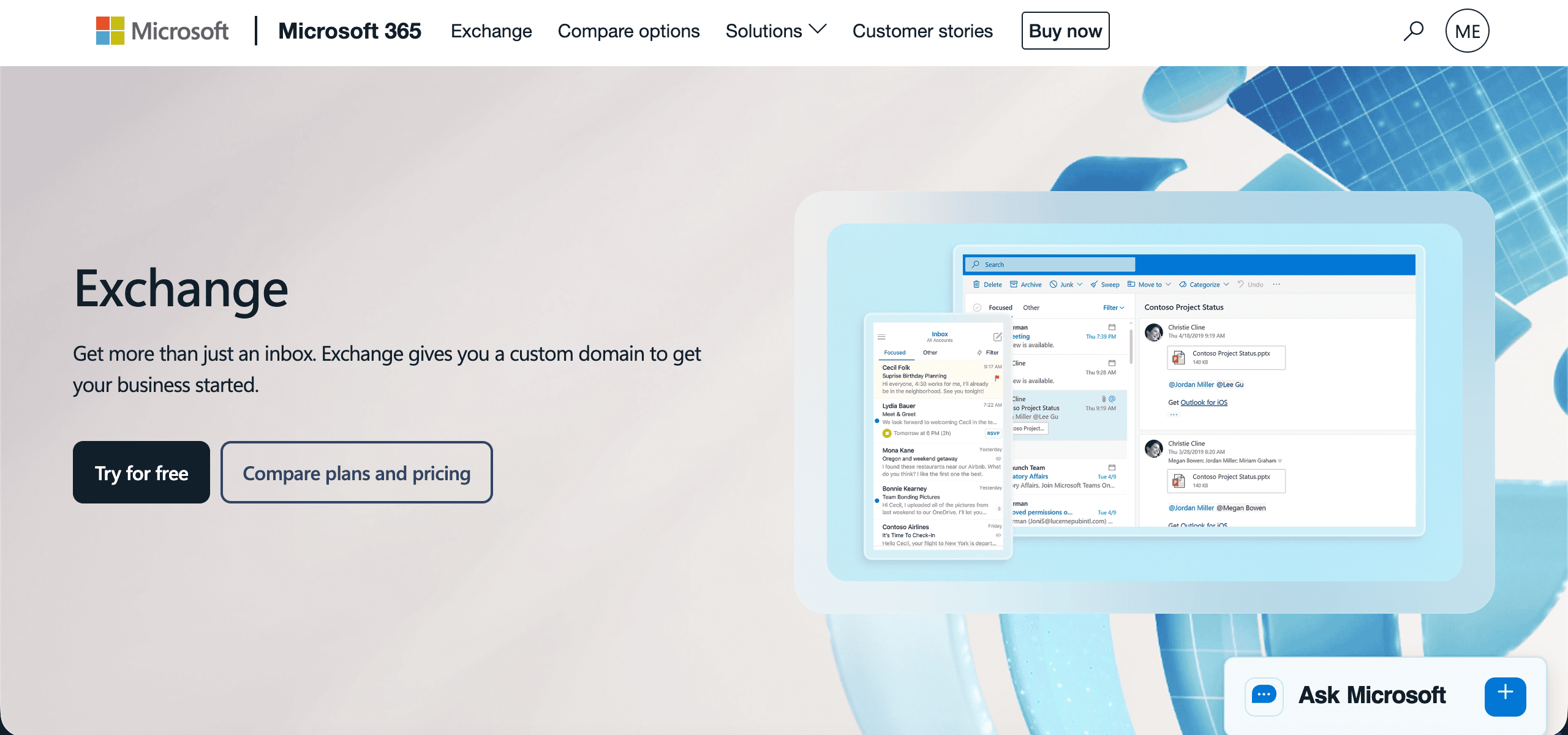
Exchange is the email server platform. It is the system running behind the scenes that makes business email actually work. Specifically, Exchange handles:
- Receiving incoming email and routing it to the correct mailbox
- Sending outgoing email to the correct recipients via the internet
- Storing mailbox data including email, calendar events, contacts, and tasks
- Enforcing policies such as retention rules, access controls, and spam filtering
- Providing the backend infrastructure for calendar sharing, meeting scheduling, and room or resource booking
- Supporting compliance features including email archiving, legal hold, and eDiscovery
For most Australian SMBs today, Exchange runs in the cloud as Exchange Online, part of their Microsoft 365 subscription. Microsoft manages the physical infrastructure including the servers and data centres. Businesses get the full feature set of Exchange without needing to buy, configure, or maintain server hardware on-premises.
Microsoft Outlook vs Exchange: A Deeper Comparison
Not all Exchange Online configurations are equal. The version of Exchange your business gets depends on which Microsoft 365 plan you hold, and the differences between plans have real practical implications for Brisbane SMBs.
Mailbox Storage
Exchange Online mailbox storage varies by plan. Microsoft 365 Business Basic, Standard, and Premium all include 50 GB of mailbox storage per user as standard, with the ability to enable an online archive that provides effectively unlimited additional storage.
For most Brisbane SMBs, 50 GB is more than sufficient for day-to-day use, but businesses with long tenures, high email volume, or regulatory requirements to retain email for extended periods will benefit from enabling the archive.
Exchange Online Plan 1 vs Plan 2

Businesses that purchase Exchange Online as a standalone product rather than as part of a broader Microsoft 365 bundle have two primary options.
Exchange Online Plan 1 provides the core email and calendar platform: a 50 GB mailbox per user, Outlook on the web access, calendar sharing, spam and malware filtering, and mobile device access. It is suitable for businesses that need reliable cloud-hosted email without requiring advanced compliance or archiving features.
Exchange Online Plan 2 adds capabilities that matter most to businesses with compliance obligations or large-scale archiving requirements.
These include unlimited mailbox storage through the in-place archive, litigation hold (which preserves all mailbox content for legal purposes even if a user deletes it), in-place eDiscovery (the ability to search across all mailboxes for specific content, relevant for legal proceedings or regulatory investigations), and data loss prevention policies.
For businesses in regulated industries in Brisbane including legal, financial services, and healthcare, Plan 2 features are worth understanding even if they are not immediately required.
Compliance and Security Features Across Plans
One area where the Exchange plan comparison becomes most practically relevant for Australian SMBs is compliance and email security. As a useful comparison point, Microsoft 365 Business Standard costs $12.50 per user per month. Your choice should reflect not just mailbox size and features, but also your compliance obligations and security requirements.
Email authentication records
SPF, DKIM, and DMARC are DNS records that tell receiving mail servers that your Exchange Online environment is authorised to send email on behalf of your domain. These records are not automatically configured when you set up Microsoft 365. They need to be added to your domain’s DNS settings by your IT provider.
Without them, legitimate email from your business can end up in recipients’ spam folders, and your domain is more vulnerable to being spoofed by attackers sending fraudulent email that appears to come from your address. XCD IT configures these records for all new Brisbane clients as part of Microsoft 365 setup.
Spam and malware filtering

Exchange Online includes baseline spam and malware filtering for all plans through Exchange Online Protection (EOP). Microsoft 365 Business Premium adds Microsoft Defender for Office 365, which provides significantly more sophisticated protection: safe links (real-time checking of URLs in emails before they are opened), safe attachments (sandboxing of email attachments before delivery), and anti-phishing policies with impersonation detection. Outlook may move suspicious messages to the junk folder, while Exchange-side policies provide more active control over filtering before delivery.
For Brisbane SMBs handling sensitive client data or operating in industries targeted by phishing campaigns, the difference between EOP and Defender for Office 365 is substantial.
Retention policies
Exchange Online allows administrators to configure retention policies as part of its administrative controls for mailbox lifecycle and compliance, automatically moving or deleting email after defined periods.
This is relevant for Australian businesses with obligations under the Privacy Act, industry-specific record-keeping requirements, or internal policies around email housekeeping.
Retention policies are configured in the Microsoft Purview compliance portal and apply at the mailbox or folder level.
Litigation hold and eDiscovery
Available in Exchange Online Plan 2 and Microsoft 365 Business Premium, litigation hold preserves all mailbox content regardless of what users do with their email, as a server-side service provided by Exchange for legal preservation and search.
If a staff member deletes emails that are relevant to a legal matter, litigation hold ensures those emails are still recoverable. eDiscovery allows authorised administrators to search across all preserved mailbox content.
For Brisbane businesses that have faced or anticipate legal proceedings, these features can be critical.
Shared Mailboxes and Resource Accounts

Exchange Online includes the ability to create shared mailboxes, which are email addresses not tied to a specific user that multiple staff can access. Common examples in Brisbane SMBs include addresses like info@, accounts@, or support@. Shared mailboxes up to 50 GB are available at no additional licence cost, which makes them a practical and cost-effective way to manage team inboxes.
Resource accounts in Exchange are used for room and equipment booking. A meeting room, a pool car, or a shared piece of equipment can be given an Exchange resource account that staff can invite to a meeting to check availability and book the resource directly from Outlook. This is a built-in Exchange feature that many Brisbane businesses do not know exists and are not using.
Calendar Sharing and Delegation
Exchange Online provides several levels of calendar sharing, including shared calendars, that go beyond what most Brisbane SMBs are aware of. Staff can share their full calendar with colleagues, showing all meeting details. They can share a free or busy view that shows availability without revealing meeting content.
They can delegate calendar access to an assistant or colleague who can create, accept, and manage meetings on their behalf. And at the organisational level, Exchange makes all staff calendars visible to colleagues for scheduling purposes by default, which is the mechanism behind the Scheduling Assistant in Outlook that shows when colleagues are available.
Understanding these options matters when Brisbane businesses are setting up new staff, onboarding executive assistants, or managing calendar access for departing employees. XCD IT configures calendar permissions as part of our standard managed IT service onboarding process.
How Outlook and Exchange Work Together

When a staff member opens Outlook on their laptop at a Brisbane office, the following happens in the background:
Outlook, the client application, connects to Exchange Online, the backend exchange service, using a protocol called MAPI over HTTPS. Modern Microsoft 365 tenants use this cloud connection model, while an on premises server may still have different legacy connectivity options. Exchange authenticates the user via Microsoft Entra ID, which confirms their identity and checks their licence status. Outlook downloads recent email from the Exchange mailbox and displays it in the inbox.
The calendar shows meetings pulled from Exchange, including meetings scheduled by colleagues and shared calendar events. Outlook lets staff send and receive emails, while Exchange handles the routing and storage. When the user sends an email, Outlook passes it to Exchange, which routes it to the recipient’s mail server via the internet.
All of this happens in seconds and is completely invisible to the user under normal circumstances. The architecture only becomes visible when something breaks: a password change that has not propagated correctly, a licence that has lapsed, a network issue preventing Outlook from reaching Exchange Online, or a configuration error introduced during an update.
This is the most common category of support requests XCD IT receives from Brisbane clients: “Outlook has stopped working.” In most cases the underlying cause is a connection or authentication issue between Outlook and Exchange rather than a fault in either product individually.
Why the Distinction Matters in Practice
Troubleshooting Email Problems
When something goes wrong with email, the source of the problem is almost always in one of two places: Exchange or Outlook. Knowing which is which helps narrow down the cause much faster.
If email is not arriving, the issue is likely in Exchange: the mailbox may be full, spam filtering may be blocking legitimate messages, or DNS records such as SPF, DKIM, and DMARC may be misconfigured, causing messages to be rejected before they reach the inbox.
If the interface is slow, crashing, or showing connection errors, the issue is more likely in Outlook itself: a corrupted profile, a software update that did not apply correctly, or a local configuration problem on the device.
If some staff are affected but not others, the issue may be at the Exchange level for specific accounts, such as a licence problem or a mailbox permissions error.
This is why when a staff member says “Outlook is not working,” a good IT provider does not immediately reinstall Outlook. They work through the components systematically to find where the actual fault is.
Evaluating Microsoft 365 Plans

All Microsoft 365 Business plans include Exchange Online. Your business gets a cloud-hosted mailbox for every licenced user regardless of whether you are on Business Basic, Business Standard, or Business Premium.
The difference is in the Outlook application. Business Basic does not include the installed Outlook desktop application. Users on Business Basic access their Exchange email through Outlook on the web or the Outlook mobile app. Business Standard and Business Premium include the full Outlook desktop application that installs on Windows and macOS. For individual users with basic needs, the free Outlook.com version provides 15 GB of storage, but Microsoft 365 business plans use Exchange Online mailboxes.
For most Brisbane businesses where staff work primarily from laptops or desktops, this matters. The desktop application offers a richer experience than the browser-based version, with offline access, more advanced calendar and task management, and better performance for users with large mailboxes or high email volume.
Planning an Email Migration
When a Brisbane business moves to Microsoft 365 from an older email system, the migration process involves two distinct steps: first, the email services and mailbox data are moved into Exchange Online, the destination exchange service in the cutover process. Second, staff devices are configured to connect Outlook to the new Exchange Online mailboxes.
Understanding this sequence makes migrations less confusing for business owners and helps set realistic expectations about what happens and when during the cutover.
Exchange Online vs Google Workspace
For Brisbane businesses choosing an email and productivity platform from scratch, Exchange Online accessed through Outlook sits within the broader Microsoft Office environment and competes primarily with Google Workspace, which provides Gmail accessed through Google’s web interface and apps.
Both platforms are cloud-hosted with Australian data centre options. Both include calendar, contacts, and file storage. Both are capable, mature platforms used by millions of businesses globally.
The choice typically comes down to ecosystem preference: whether your business is more deeply invested in Microsoft tools such as Word, Excel, Teams, and SharePoint, or in Google tools such as Docs, Sheets, and Drive.
Businesses already using Microsoft 365 for other applications have a strong practical reason to stay within the Microsoft ecosystem and use Exchange Online rather than introducing a second vendor.
How XCD IT Helps Brisbane SMBs
XCD IT manages Microsoft 365 environments, including Exchange Online and Outlook, for SMBs across Brisbane, the Gold Coast, and the Sunshine Coast. Our work in this area includes migrations from legacy email systems to Exchange Online, configuration of spam filtering and email security policies including SPF, DKIM, and DMARC, Outlook deployment and profile setup across staff devices, and ongoing support when email issues arise.
We also help Brisbane businesses evaluate their Microsoft 365 plan to make sure the Outlook licencing matches what their staff actually need, and that Exchange Online is configured correctly for their security and compliance requirements.
If your business is experiencing email problems, evaluating a move to Microsoft 365, or running an older Microsoft Exchange Server that is overdue for modernisation, our managed IT service covers all of it. We also support businesses still using on premises Exchange and help them assess whether staying local or moving to Exchange Online is the better fit.

Need Reliable IT Without the Surprise Costs?
With XCD IT, you get fully managed IT support for around $100–$250/month per user, with no hidden costs or unexpected bills.
Call 07 3085 7447
For urgent IT issues or immediate assistance
Our support team is ready to help.
Frequently Asked Questions

- Co-Managed IT: How It Works With Your In-House IT Team - November 4, 2026
- IT Maintenance Checklist for Small Businesses (Weekly, Monthly, Yearly) - November 1, 2026
- Best Business VPNs for Brisbane SMBs: Complete Guide for 2026 - October 21, 2026


